How to use Purrclick, step by step
Every button, every setting, in plain words. From your first click sound to recording a Reel with your face in a bubble.
0Before you start
This guide shows every button in Purrclick, one step at a time, with real pictures from the app. You don't need to know anything about computers. Just follow along.
- A Windows 10 or Windows 11 PC (64-bit).
- About 5 minutes.
- Speakers or headphones, so you can hear the cute sounds.
- A webcam if you want your face in your videos (optional, a phone works too).
1Install and open Purrclick
- On purrclick.app, click Try free for 7 days. The download starts.
- If Chrome says the file isn't commonly downloaded, click ⋮ and then Keep.
- Open Purrclick.exe. If a blue "Windows protected your PC" box appears, click More info, then Run anyway.
- Wait a few seconds. Fifi appears in a little round bubble on your screen. That's it, Purrclick is running.
2Meet Fifi and the tray icon
Fifi is the little cat who lives on your desktop. When he is awake (green dot), you get click sounds, key sounds and ripples. When he is asleep (grey dot), all of that is off.

- Wake him up or put him to sleep: press Ctrl+Alt+M. Asleep means sounds, ripples and the cute cursor are all off. Handy for meetings. Just want silence? Turn off Sounds on instead, and Fifi stays awake.
- Move him: drag Fifi anywhere on your screen.
- Open the quick panel: click Fifi once (step 3).
- Switch click sounds fast: double-click Fifi.
- Hide or show him: press Ctrl+Alt+F.
The tray icon
Purrclick also has a small cat icon near the clock, at the bottom right of your screen. If you don't see it, click the little ^ arrow there. Right-click the icon to get this menu:
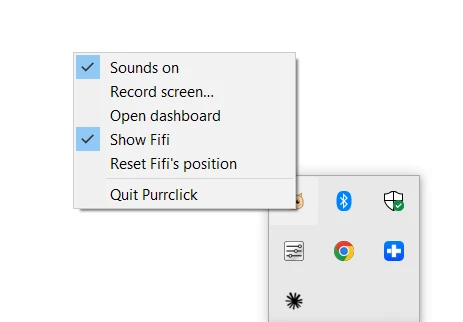
- Sounds on: tick or untick to turn the click and key sounds on or off. Fifi stays awake and ripples keep working.
- Record screen...: opens the Record window (step 10).
- Open dashboard: all the settings.
- Show Fifi: bring Fifi back if you hid him.
- Reset Fifi's position: if Fifi got lost off the screen, this brings him back to the corner.
- Quit Purrclick: closes the app fully.
3The quick panel
Click Fifi once. A small panel opens, so you can change things without opening the dashboard.
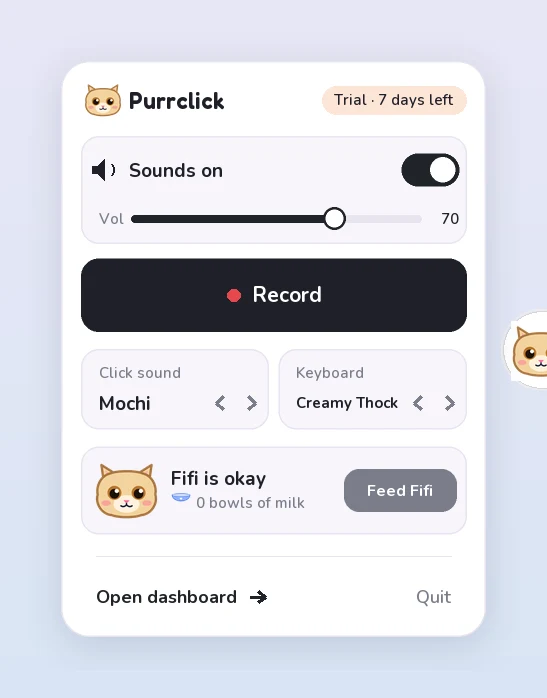
- Sounds on: turns the click and key sounds on or off. Only the sounds, Fifi stays awake.
- Vol: the volume slider.
- Record: opens the Record window.
- The ‹ › arrows next to Click sound and Keyboard switch sounds fast.
- Feed Fifi: give him a bowl of milk 🥛
- Open dashboard takes you to every setting. Quit closes Purrclick.
4The dashboard Home
Click Open dashboard. The Home page shows everything at a glance.
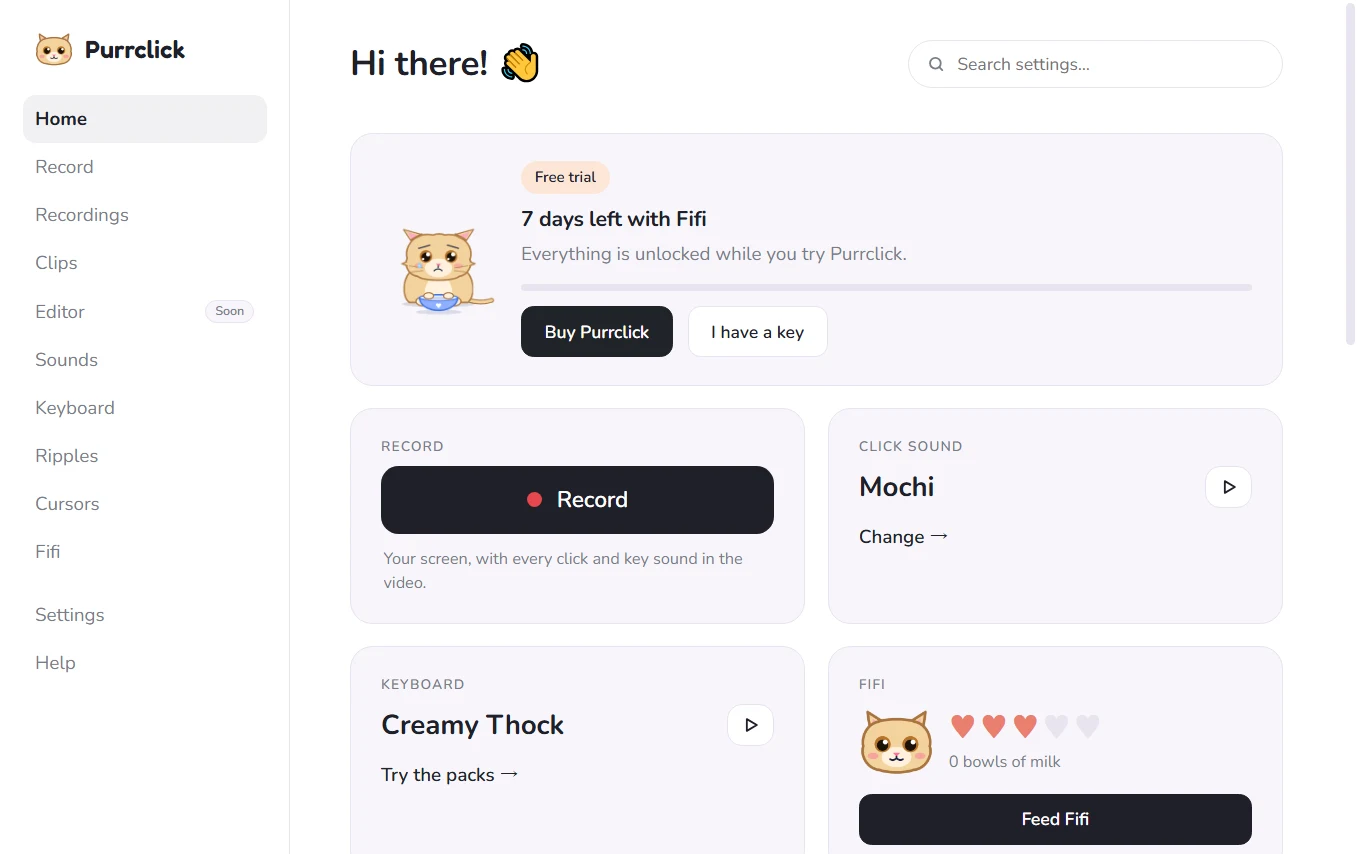
- Buy Purrclick / I have a key: unlock it forever. Paste the licence key from your email.
- Record: opens the recorder (step 10).
- Click sound → Change: pick a different sound (step 5).
- Keyboard → Try the packs: pick a key sound (step 6).
- Feed Fifi: fill his bowl.
- The menu on the left takes you to every page: Record, Recordings, Clips, Sounds, Keyboard, Ripples, Cursors, Fifi, Settings and Help. The Search settings box at the top finds any setting fast.
5Pick your click sound
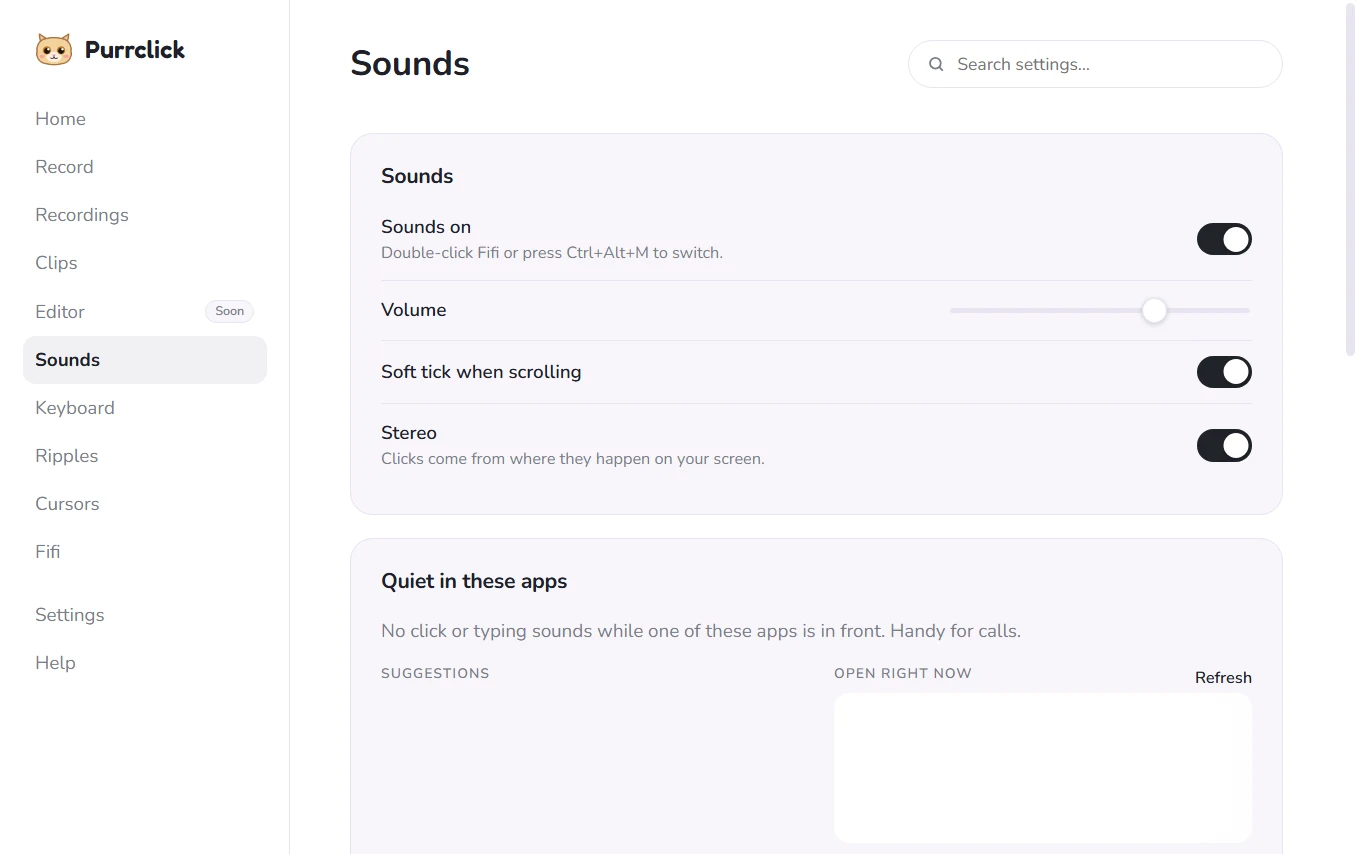
- Click Sounds in the menu.
- Make sure sounds are on, and set the volume.
- Scroll down to Pick your click. Click any sound to hear it, then pick it.
- Every mouse click on your PC now plays that sound. Try it anywhere.
Make Purrclick quiet in some apps
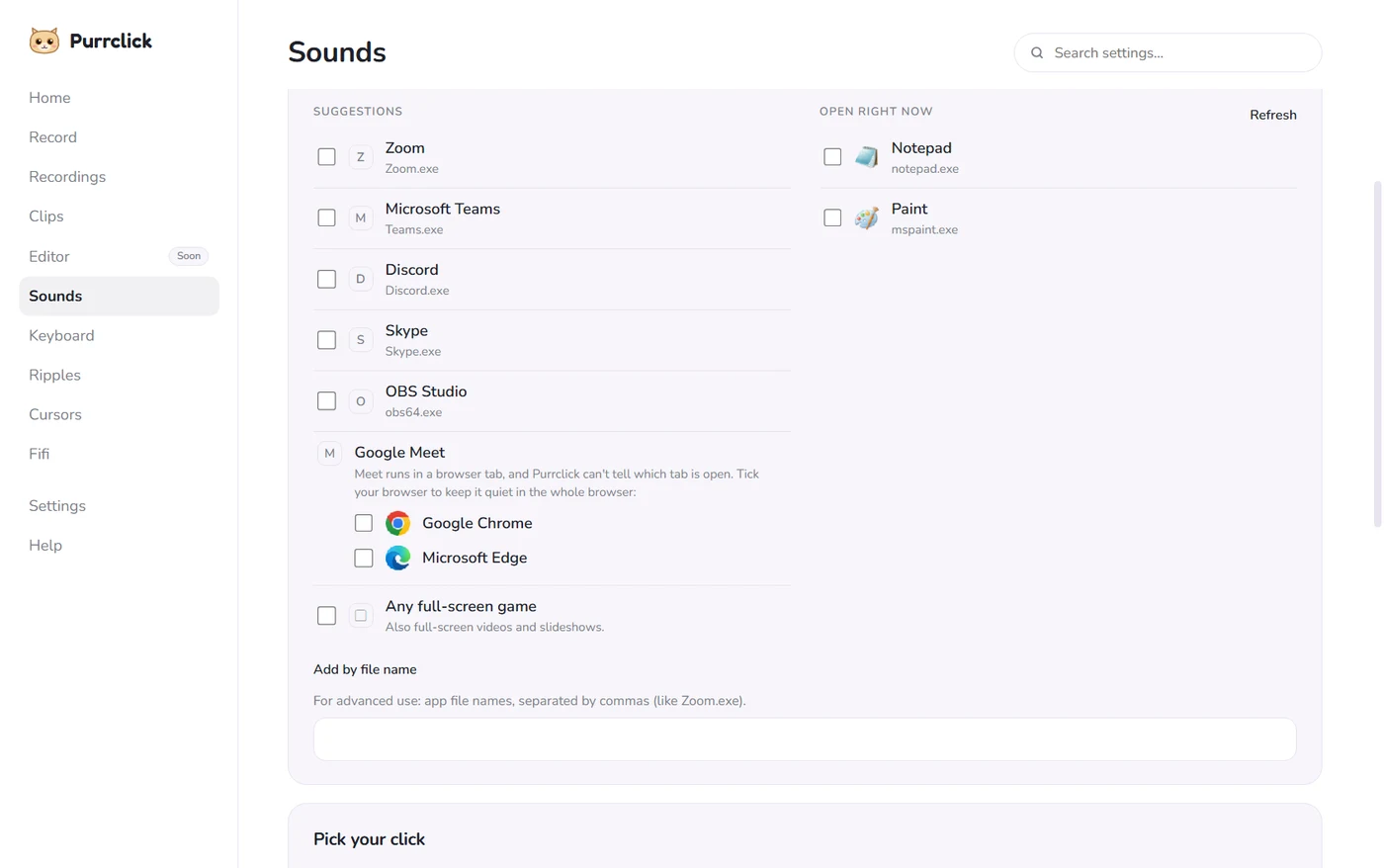
Don't want click sounds in Zoom, Teams or a game? Use Quiet in these apps on the same page.
- Tick the apps in Suggestions (Zoom, Microsoft Teams, Discord, Skype, OBS Studio).
- Or tick an app under Open right now. Click Refresh if you just opened it.
- For Google Meet, tick your browser (Chrome or Edge). Meet runs in a tab, so the whole browser goes quiet.
- Tick Any full-screen game to stay quiet in games, full-screen videos and slideshows.
- Not in the list? Type the app's file name in Add by file name, like
Zoom.exe.
6Pick your keyboard sound
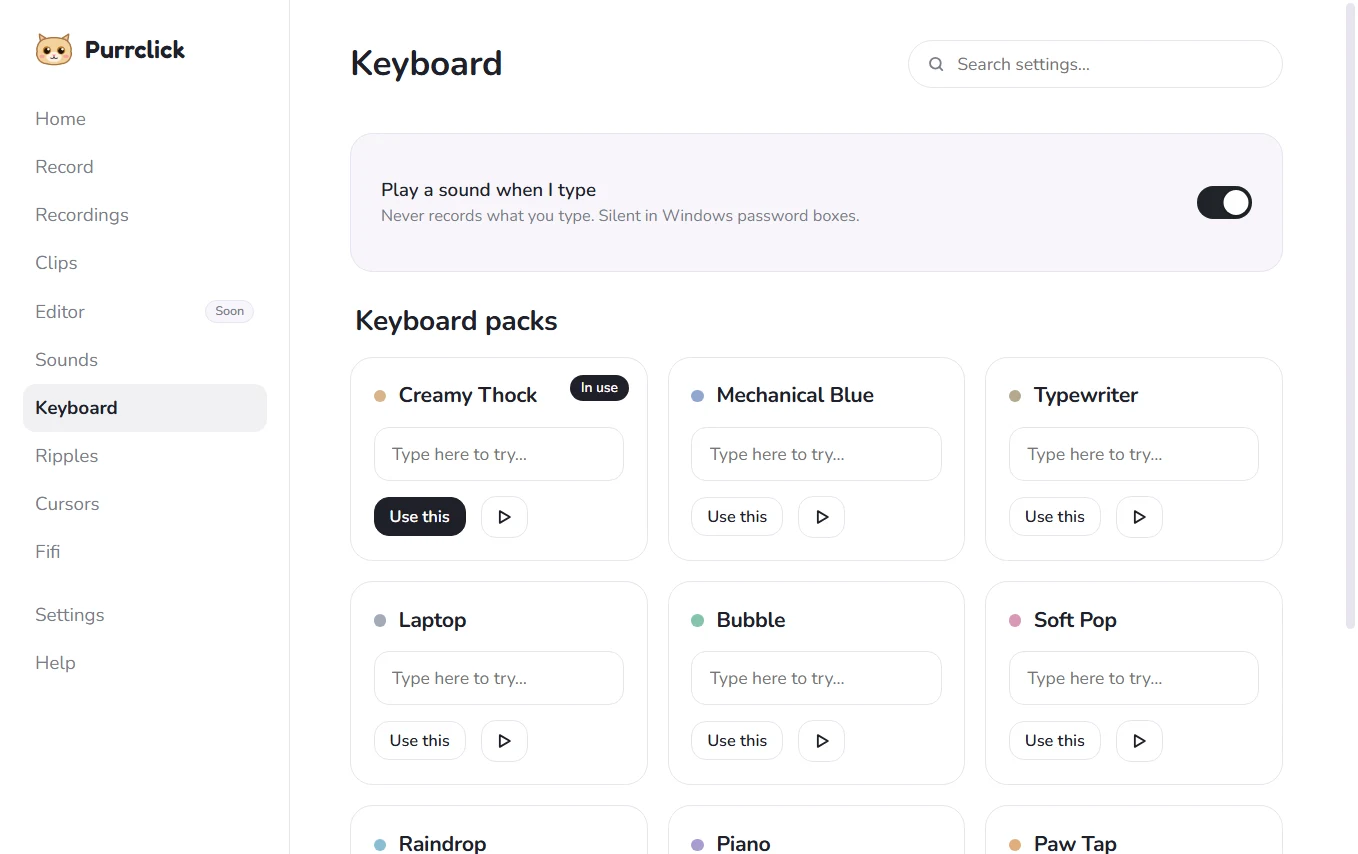
- Click Keyboard in the menu.
- Make sure key sounds are on.
- Type in the little Try box under any pack to hear it, then pick it.
7Turn on ripples
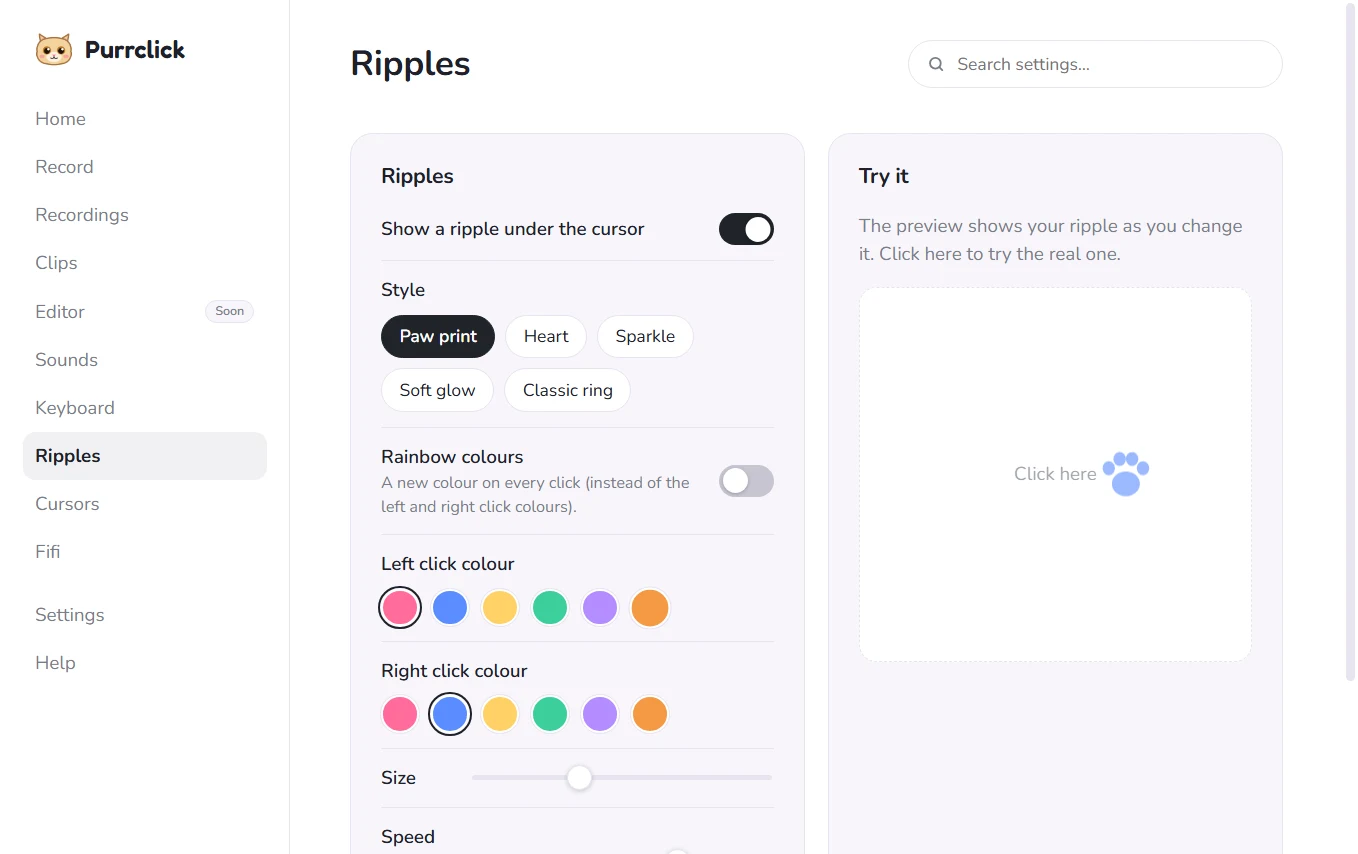
A ripple is a little shape that pops under your mouse every time you click. It helps people follow your mouse in videos.
- Click Ripples in the menu and turn ripples on.
- Pick a style: Paw print, Heart, Sparkle, Soft glow or Classic ring.
- Pick colours for left and right clicks, and the size and speed.
- Click in the preview box to see your ripple live.
8Pick a cute cursor
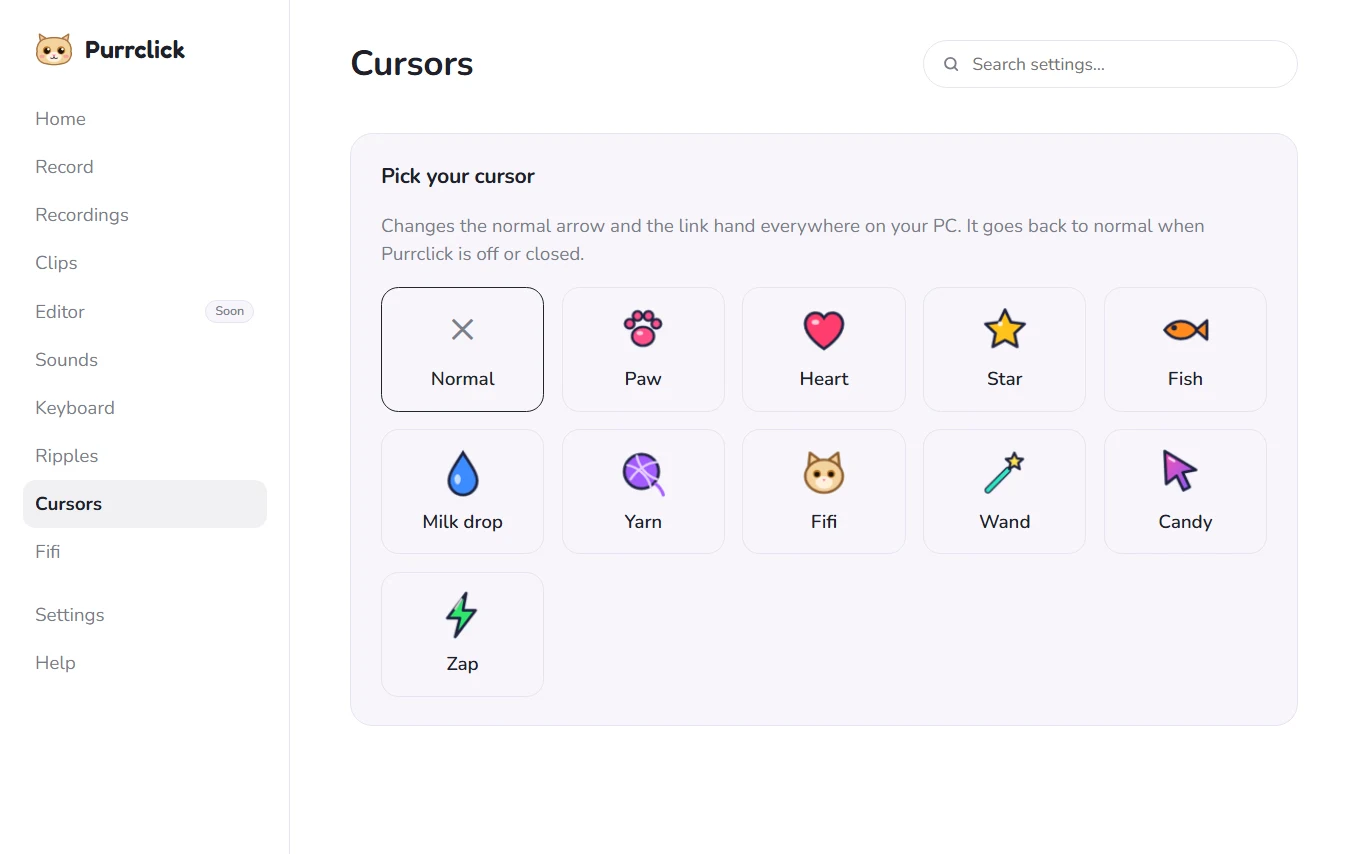
- Click Cursors in the menu.
- Click any cursor to use it. Your normal Windows cursor comes back when Fifi sleeps or you quit.
9Look after Fifi
Open the Fifi page to see how he is doing.
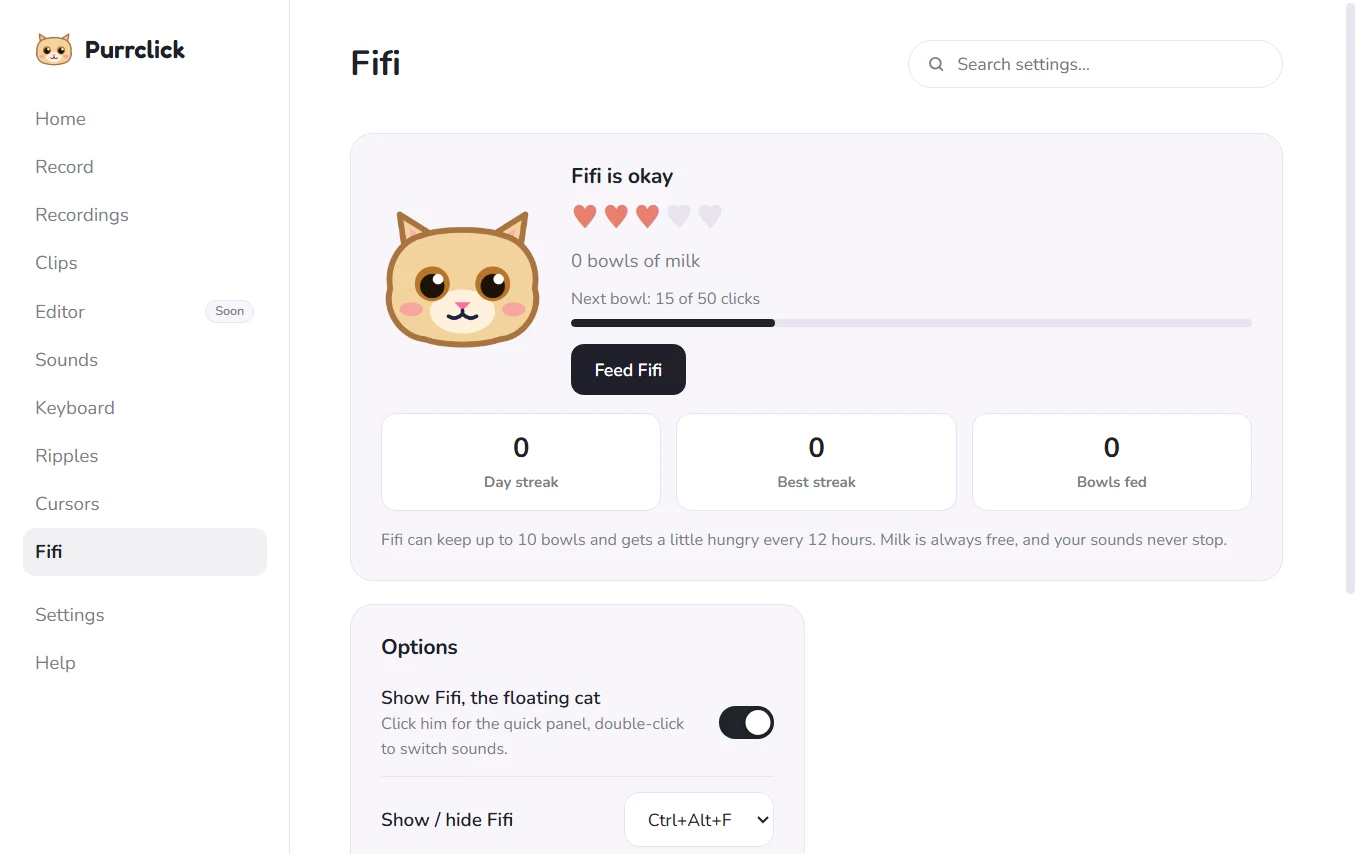
- Hearts show his mood. Feed him to keep him happy.
- Next bowl: every 50 clicks fills one bowl of milk.
- Day streak, Best streak and Bowls fed count your care.
- Fifi can keep up to 10 bowls and gets a little hungry every 12 hours. Milk is always free, and your sounds never stop.
- Show Fifi, the floating cat: turn his bubble on or off.
- Show / hide Fifi: change the Ctrl+Alt+F shortcut here.
10Choose your video shape
Click Record on Fifi's panel, the tray menu or the Home page (or press Ctrl+Alt+R). The Record window opens. First, pick the shape of your video under Format:
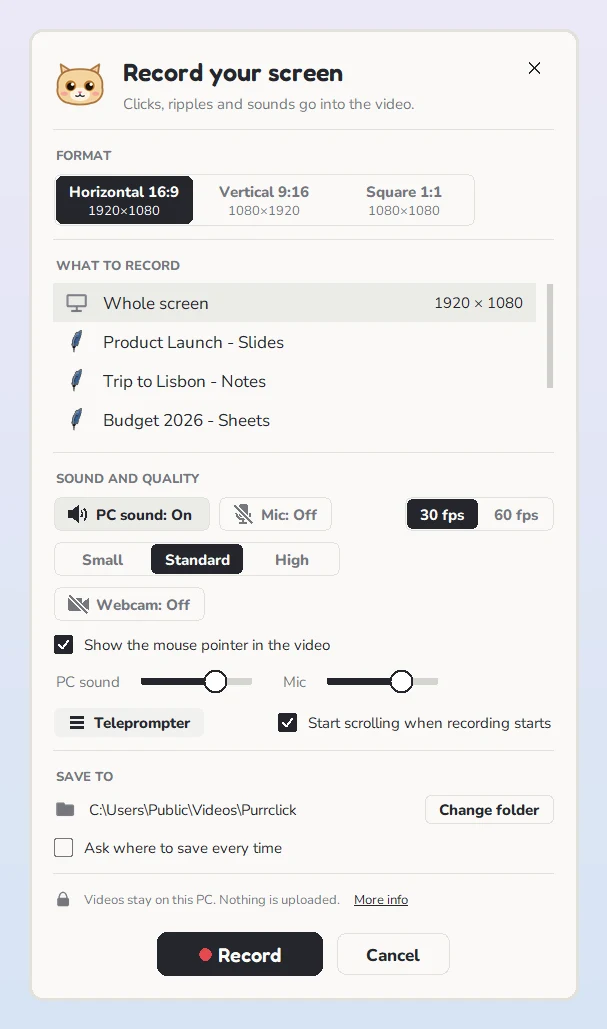
- Horizontal 16:9 (1920×1080): wide. For YouTube, tutorials, sharing with your team.
- Vertical 9:16 (1080×1920): tall. For Instagram Reels, YouTube Shorts and TikTok.
- Square 1:1 (1080×1080): for feeds and LinkedIn.
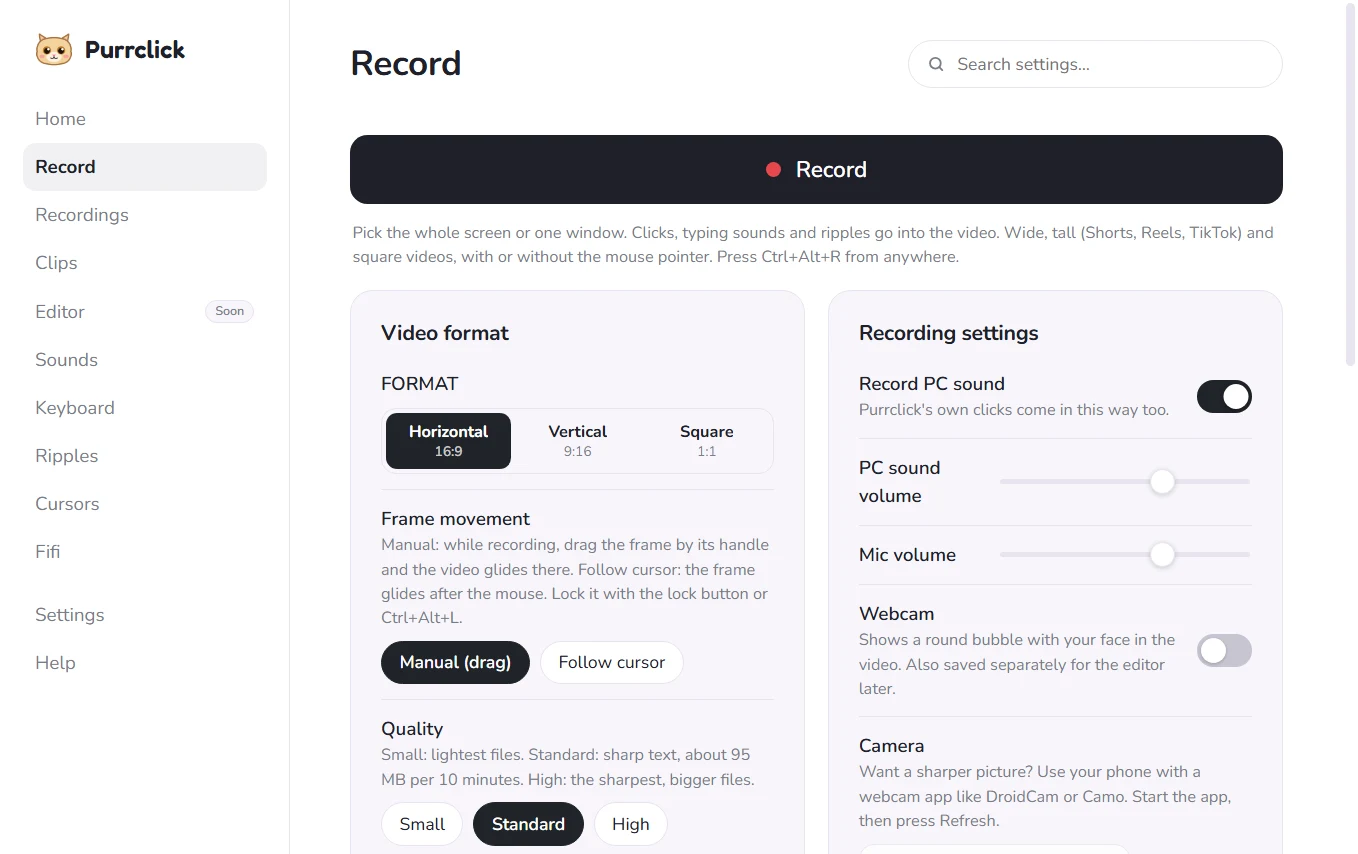
You can set the same things ahead of time on the Record page of the dashboard. Whatever you pick there is ready next time.
11Place the frame
When you pick Vertical or Square, choose a style: Fixed frame, Follow cursor or Fit with blur. With the first two, a frame shows on your screen and only what is inside it goes into the video.
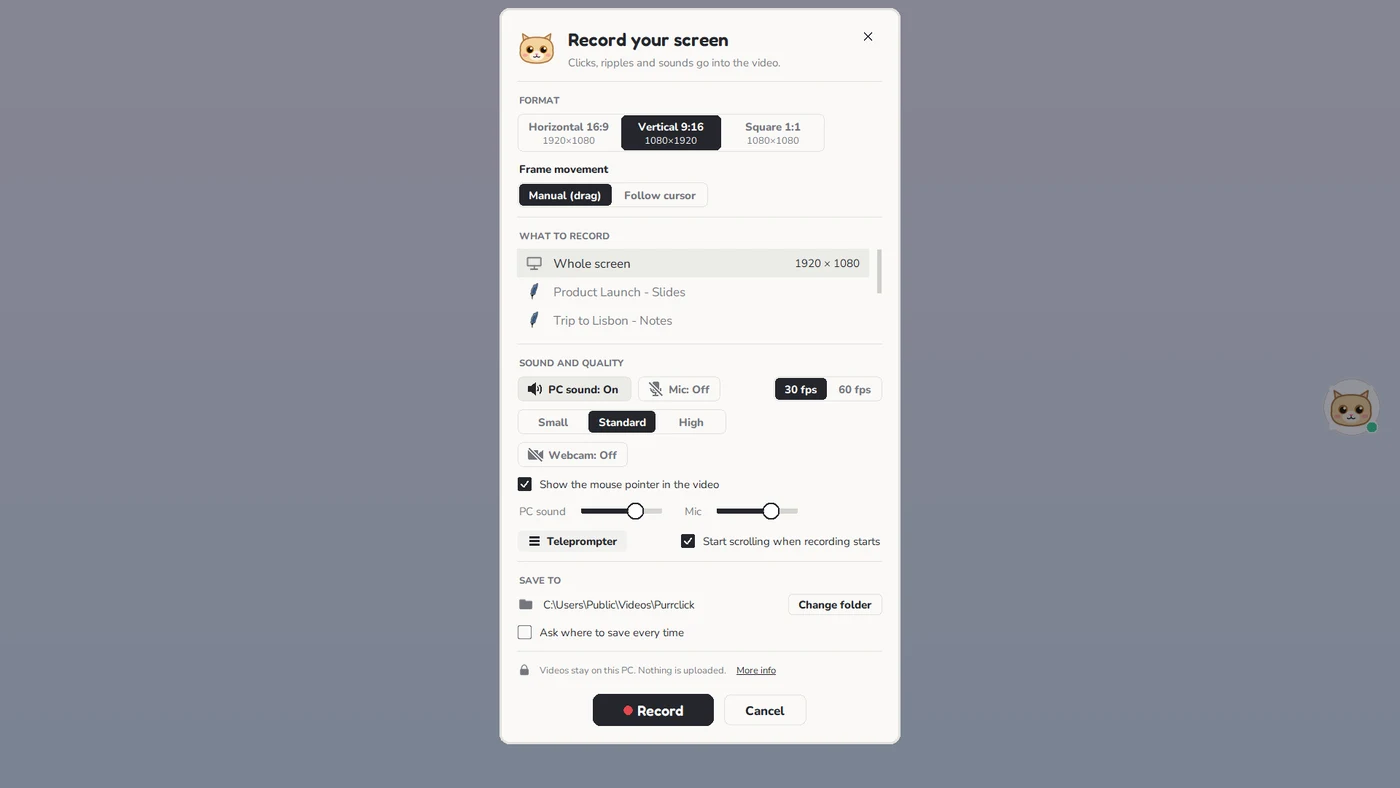
- Fixed frame: drag the frame by its handle to the part you want. It stays there. You can still drag it to a new spot while you record.
- Follow cursor: the frame glides with your mouse, so it always films what you're pointing at.
- Fit with blur: no frame to place. Your whole screen sits in the middle of the video on a soft blurred background, with no black bars. Great when everything on screen matters.
- Press Ctrl+Alt+L to lock the frame where it is, even in Follow cursor mode. Press again to unlock.
Under What to record, pick Whole screen or one app window.
12Sound, mic and quality
- PC sound: records what your computer plays, including Purrclick's click sounds.
- Mic: records your voice. Use the sliders to make PC sound or mic louder or quieter.
- Quality: Small (light files), Standard (sharp text, about 95 MB per 10 minutes) or High (sharpest, bigger files).
- 30 fps or 60 fps: 60 is smoother for games and fast scrolling.
- Show the mouse pointer in the video: untick it if you want a clean video with no pointer.
- Save to: where your videos go. Click Change folder to pick another, or tick Ask where to save every time.
13Add your face in a bubble
- Turn on Webcam.
- Pick your camera in the Camera list.
- No webcam, or want a sharper picture? Use your phone with an app like DroidCam or Camo. Start the app, then press Refresh so it shows in the list.
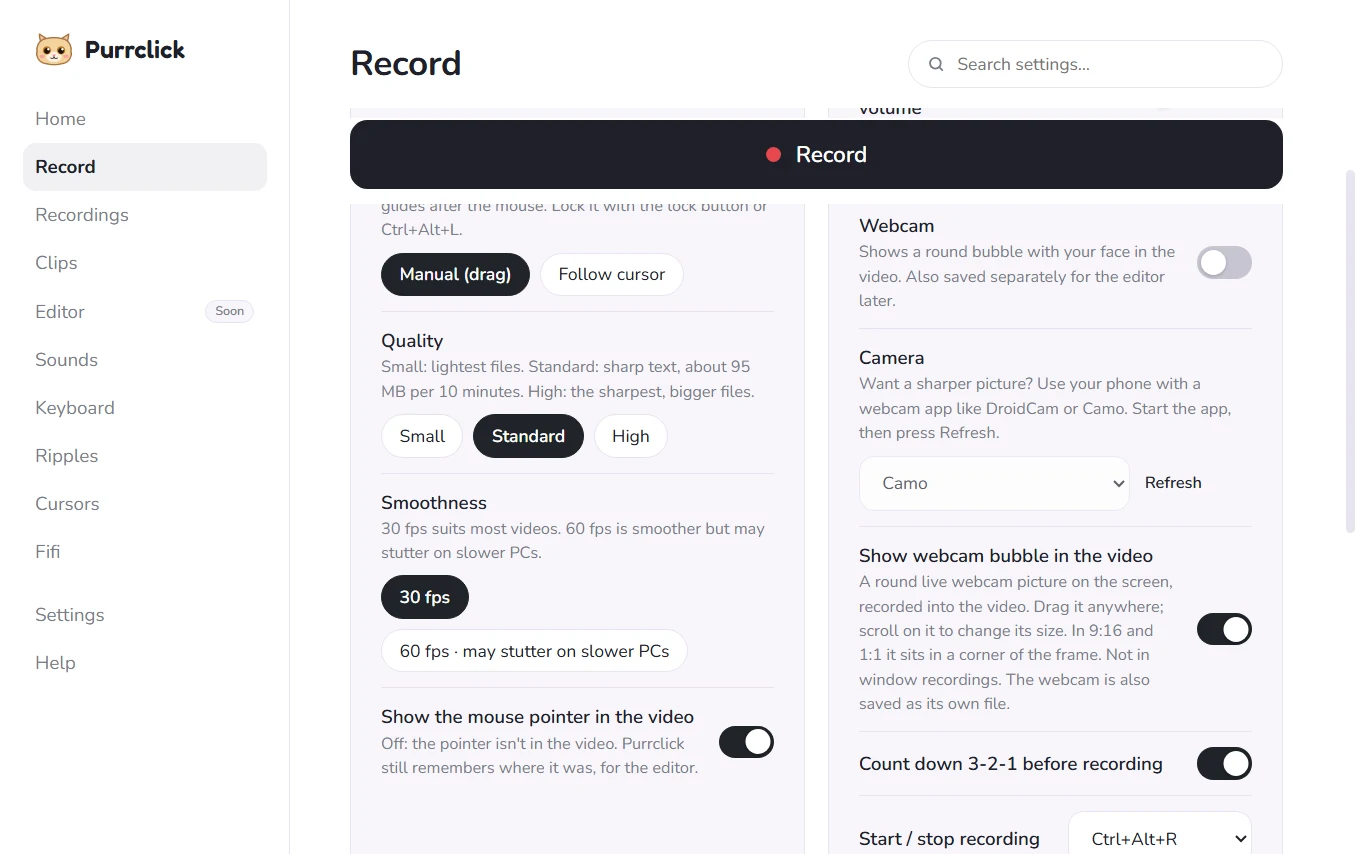
A round bubble with your face appears in the video. Your webcam is also saved as its own file, for editing later.
14Read from the teleprompter
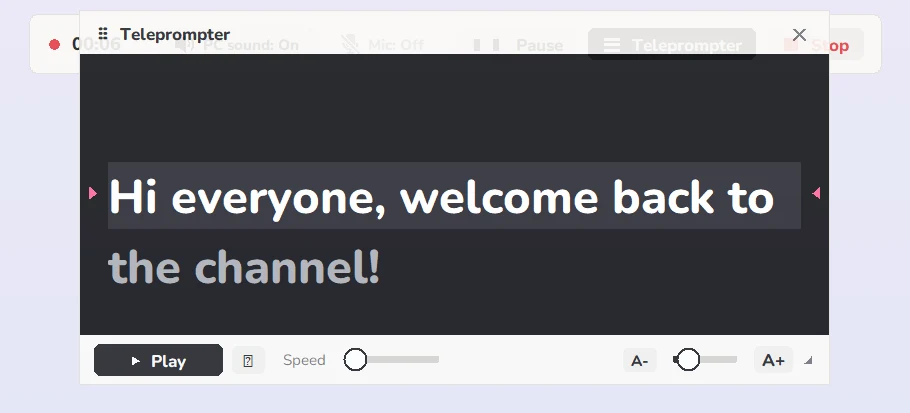
- Tick Teleprompter in the Record window (or click it on the recording bar).
- Paste or type your script. It is saved automatically.
- Tick Start scrolling when recording starts, or press Play (or Ctrl+Alt+T) yourself.
- Read as it scrolls. The line you are reading is highlighted. Use the Speed slider and the A- / A+ buttons for text size.
15Press Record
- Click the big ● Record button.
- A 3, 2, 1 countdown appears in the middle of the screen.
- Do your thing: click, type, talk. Every click and key sound goes into the video.
16The recording bar
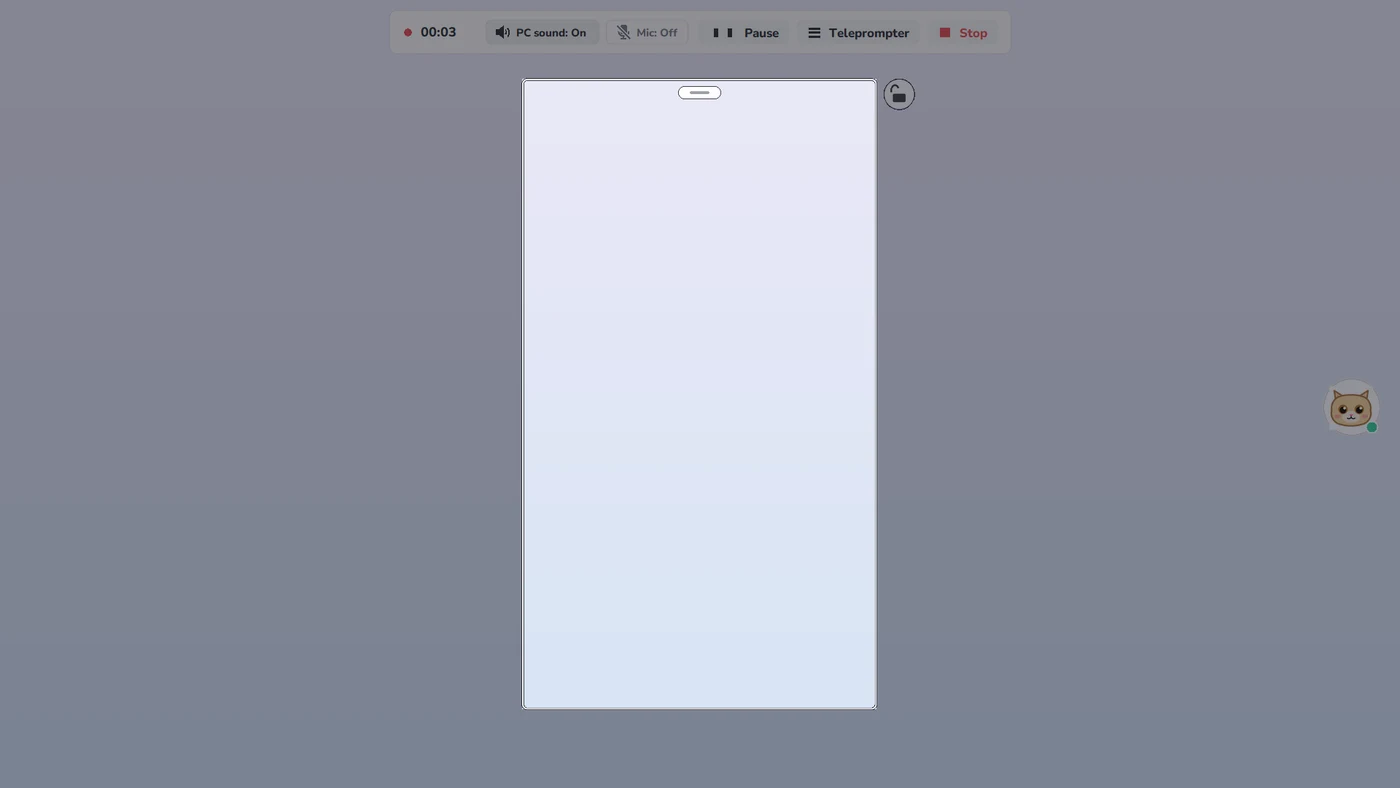
A small bar sits at the top of your screen while you record. It never shows in the video.

- The red dot and timer show how long you've been recording.
- PC sound: On/Off and Mic: On/Off: click to turn them on or off mid-recording.
- Pause (or Ctrl+Alt+P): take a break. The button changes to Resume. Click it (or press the keys again) to carry on. The paused part is not in the video.
- Teleprompter: show or hide your script.
- Stop (or Ctrl+Alt+R): finish and save.

17Find your video
When you press Stop, a little box tells you where the video was saved.
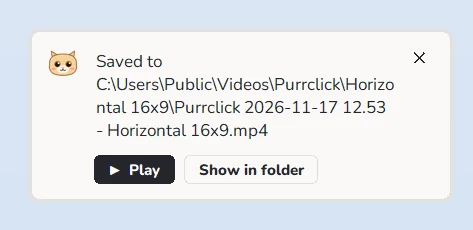
Your videos are MP4 files in Videos → Purrclick, in a folder for each shape. You can also find all of them on the Recordings page:
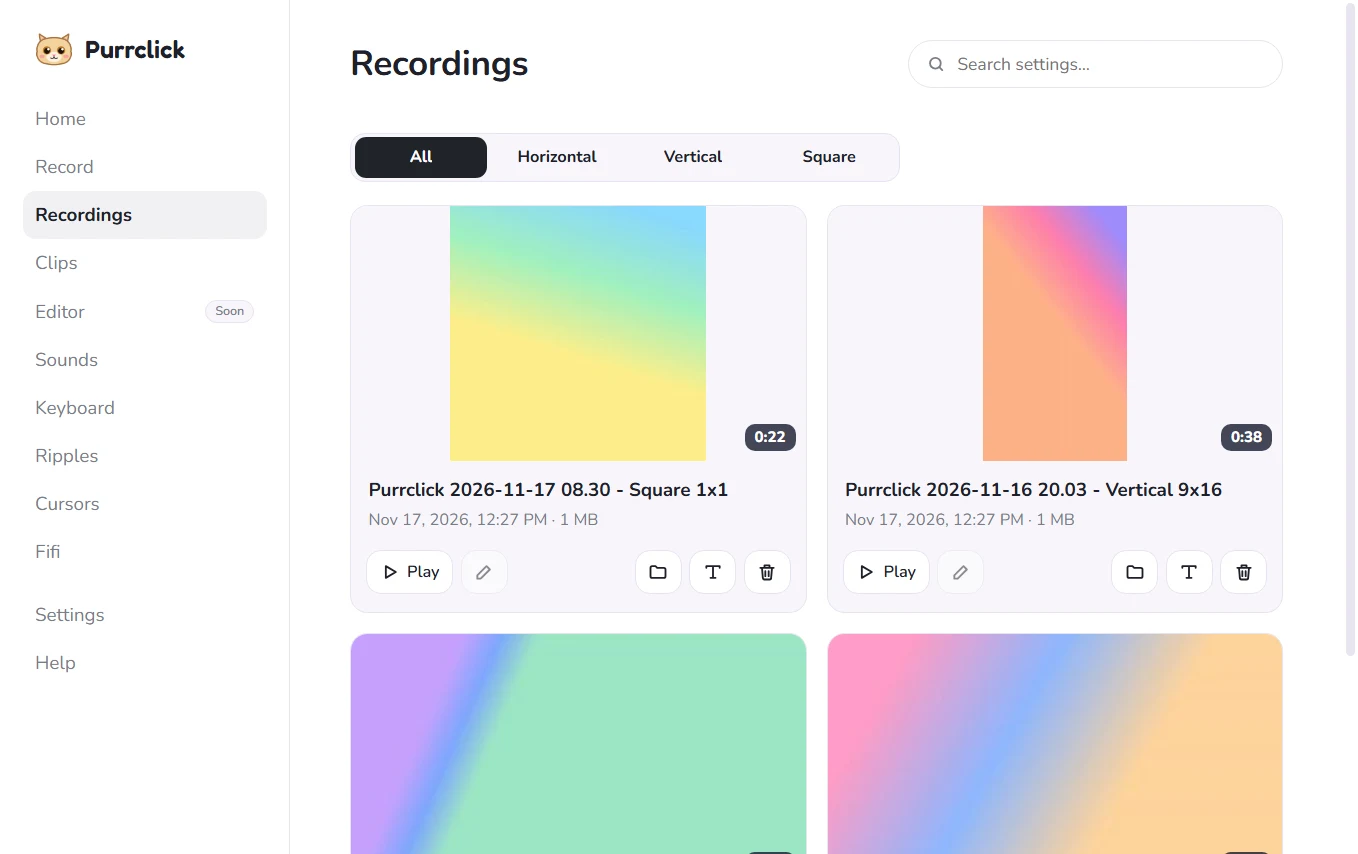
- The tabs at the top show All, or only Horizontal, Vertical or Square videos.
- ▶ Play watches it. The pencil renames it. The folder opens where it is saved. The bin deletes it.
18Instant Replay clips
Missed a great moment because you weren't recording? Instant Replay fixes that.
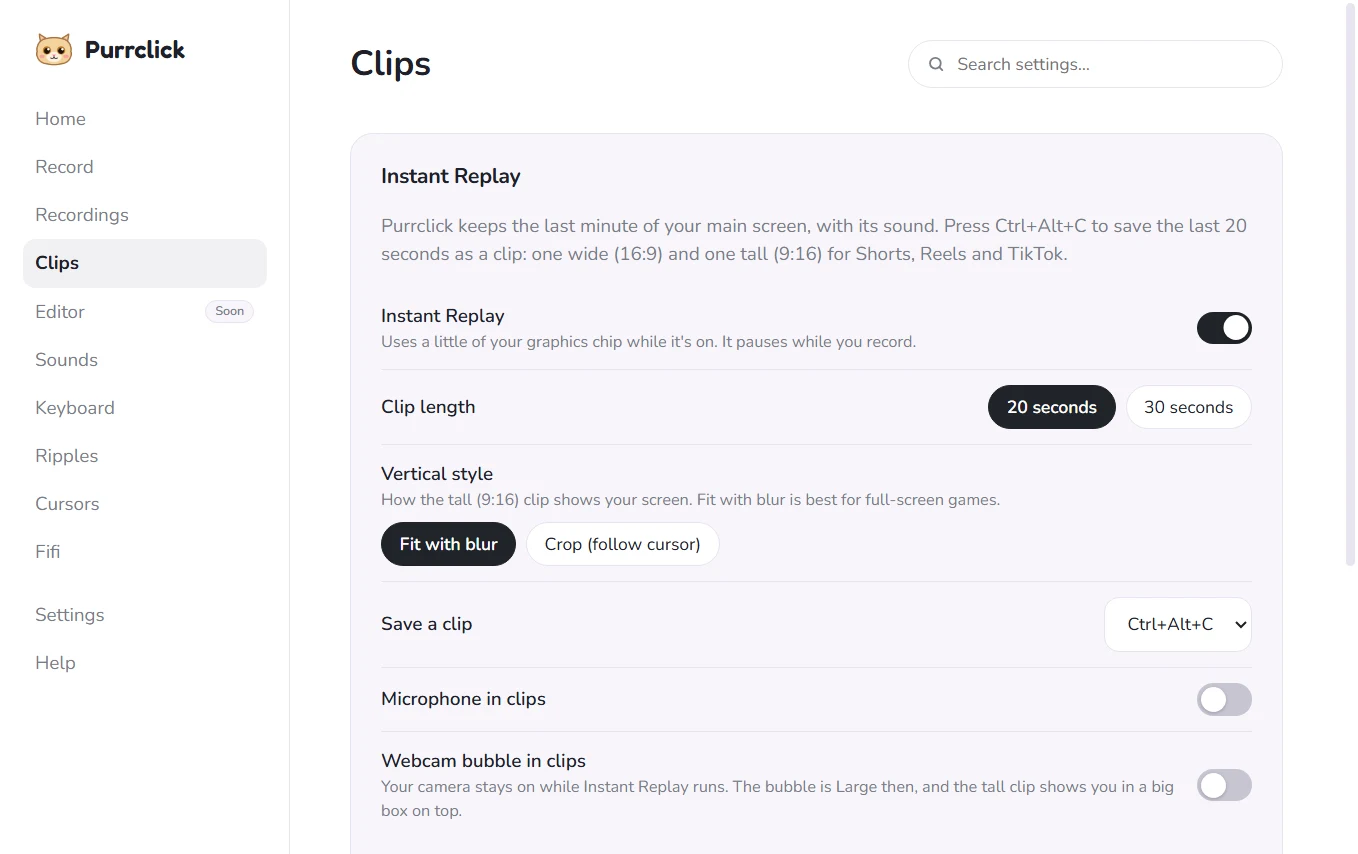
- Open the Clips page and turn on Instant Replay.
- Choose the Clip length: 15, 30 or 60 seconds. Turn on Keep recording 5 more seconds if you want the ending of the moment too.
- Choose the Quality: Light (720p) if you play games on a laptop, it barely touches your FPS. High (1080p) for the sharpest clips.
- Choose the Vertical style: Fit with blur (the whole screen, best for games) or Follow cursor (zoomed in on your mouse, best for tutorials).
- Want your voice or face in clips? Turn on the mic and Webcam bubble in clips.
- Use your PC as normal. When something great happens, press Ctrl+Alt+C.
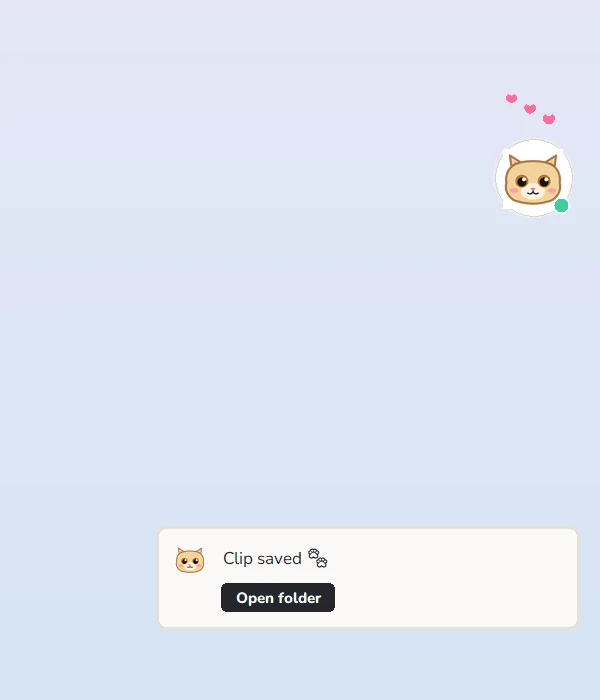
"Saved last 30 seconds" pops up with an Open folder button, and Fifi gets happy. Each clip is named with its date and time, and shows a thumbnail on the Clips page with Open folder and Copy path buttons. You get two clips: a wide 16:9 and a tall 9:16.
Clips are saved in Videos → Purrclick → Instant Replay, in the 16x9 and 9x16 folders. Your saved clips also show at the bottom of the Clips page.
19Settings and your licence
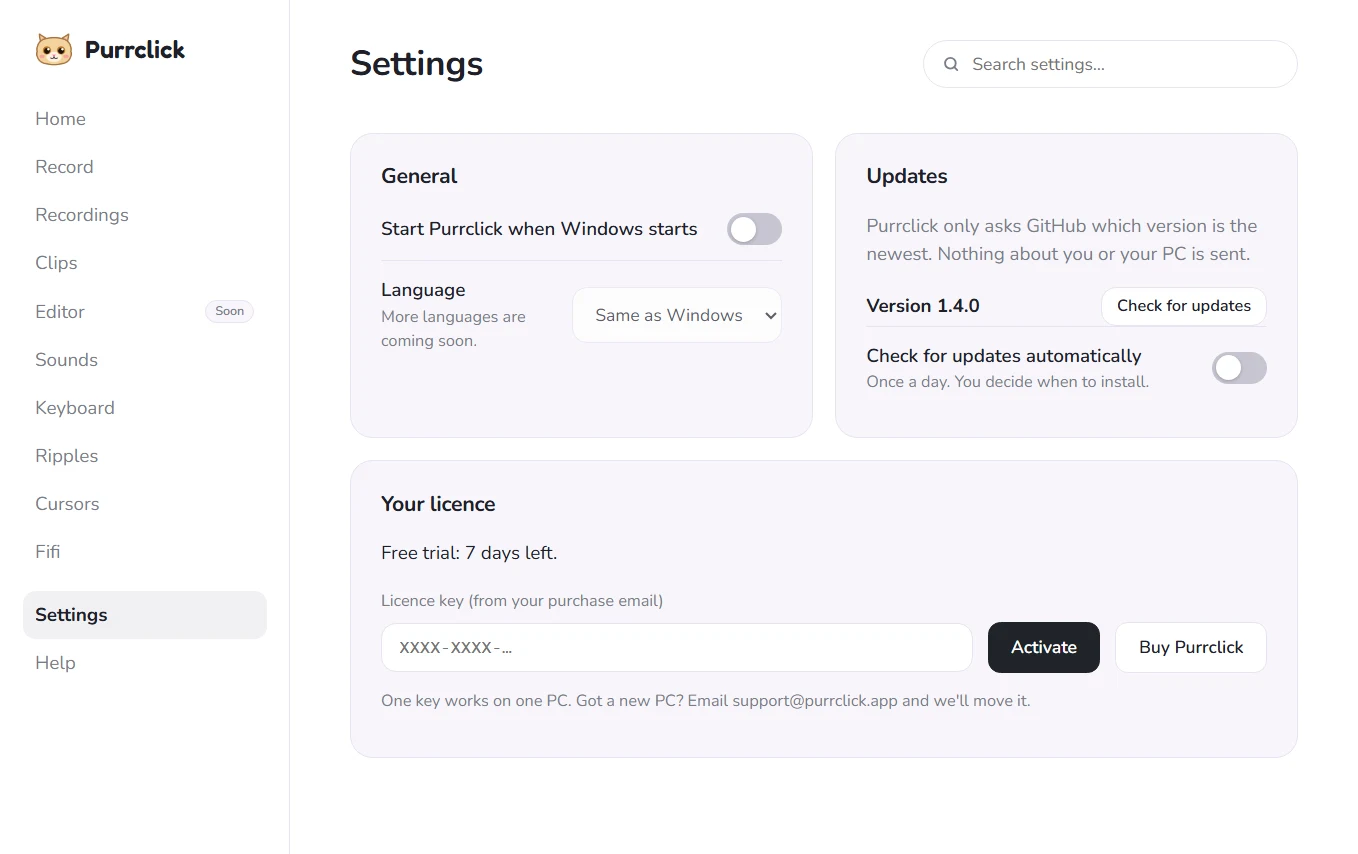
- Start Purrclick when Windows starts: turn on so Fifi is always there.
- Language: Same as Windows for now. More languages are coming.
- Check for updates: see if there is a new version. Turn on Check for updates automatically to check once a day. You decide when to install.
- Your licence: paste your key from the purchase email and click Activate. One key works on one PC. Got a new PC? Email support@purrclick.app and we'll move it.
⌨All shortcuts
| Shortcut | What it does |
|---|---|
| Ctrl+Alt+R | Start or stop a recording |
| Ctrl+Alt+P | Pause or resume the recording |
| Ctrl+Alt+L | Lock or unlock the frame (vertical and square) |
| Ctrl+Alt+T | Play or pause the teleprompter |
| Ctrl+Alt+C | Save an Instant Replay clip (the last 15, 30 or 60 seconds) |
| Ctrl+Alt+M | Wake Fifi up or put him to sleep (sounds, ripples and cute cursor on or off) |
| Ctrl+Alt+F | Show or hide Fifi |
You can change the shortcuts on the page they belong to: Record, Clips and Fifi.
?Troubleshooting
"Windows protected your PC" (blue box)
This shows up for new apps that Windows doesn't know yet. Click More info, then Run anyway. You only do this once.
Chrome says the file "isn't commonly downloaded"
Click the ⋮ next to the download, then Keep.
I can't hear any click sounds
- Check that Windows volume isn't muted.
- Look at Fifi. If he is asleep (grey dot), press Ctrl+Alt+M to wake him up.
- Click Fifi and check that Sounds on is ticked.
- Purrclick goes quiet on purpose in password boxes, and in any app you ticked in Sounds → Quiet in these apps.
My camera doesn't show up
- Close other apps that use the camera (Zoom, Teams, Camera).
- Open Windows Settings → Privacy → Camera and allow desktop apps to use it.
- Pick the right camera in the Camera list.
No sound in my recording
Check the recording bar says PC sound: On for sounds from your computer, and Mic: On for your voice. Check the volume sliders aren't at zero.
Ctrl+Alt+C does nothing
- Make sure Instant Replay is on in the Clips page.
- Instant Replay pauses while you are recording. Stop the recording first.
- Wait about 30 seconds after turning it on, so there is something to save.
- If another app uses the same keys, pick a different shortcut in the Clips page.
The video or game looks black in my recording
Some apps and streams use copy protection, and Windows hides them from every screen recorder. Nothing in Purrclick can change that.
Questions
Does the teleprompter show in my video?
No. You see your script on screen, but Purrclick hides it from the video, from screenshots and from screen shares on Windows 10 (version 2004 or newer) and Windows 11.
Does Purrclick upload my videos?
No. Everything is recorded and saved on your PC. Nothing is sent anywhere.
Can I use my phone as a webcam?
Yes. Install a phone webcam app such as DroidCam or Camo, then pick it in the Camera list in the Record window.
What's the difference between Record and Instant Replay?
Record is for when you know you want to film something. Instant Replay runs quietly in the background, so when something great happens you press Ctrl+Alt+C and save the last 20 or 30 seconds.
Which Windows do I need?
Windows 10 or Windows 11, 64-bit.